
How do I get started?
- Access Patton Elementary on Konstella through the app or the web
- Complete your registration (Join with the school code, or accept the email invitation)
- Join a Classroom and Add your Child
View the Konstella Quick Guide 👇
Konstella FAQ
Do I need to download the app?
No. Konstella is available to view on a web browser or through the iOS/Android app.
How do I connect to my child’s classroom?
It depends on how you join. If you join through the invitation from your child’s teacher, you are likely already connected to the right classroom. If you join the campus, then need to join a classroom later, see “Connecting to a Classroom” in the Tips and Tricks section below.
Can more than one parent join?
Of course!
Be sure you have the appropriate emails provided to your teacher. All accounts are verified by a school administrator. The second parent who joins will still register and create their own profile on Konstella. When prompted to add a child, type the student’s exact name and assign their classroom. Choose Merge when the system detects the child already exists in the school directory to safely link both accounts to the same student profile
What if I have multiple children in multiple Patton classrooms?
Konstella is organized by child. You will be able to navigate to each classroom based on the classroom your child is a part of.
I’m getting too many notifications. How can I change them?
- Log in
- Select Settings
- Select Notifications
- Customize to your liking
I’m having trouble. Who can I ask for help?
Email help@pattonpta.org and we’ll do our best to help guide you!
Tips & Tricks
Connecting to a Classroom
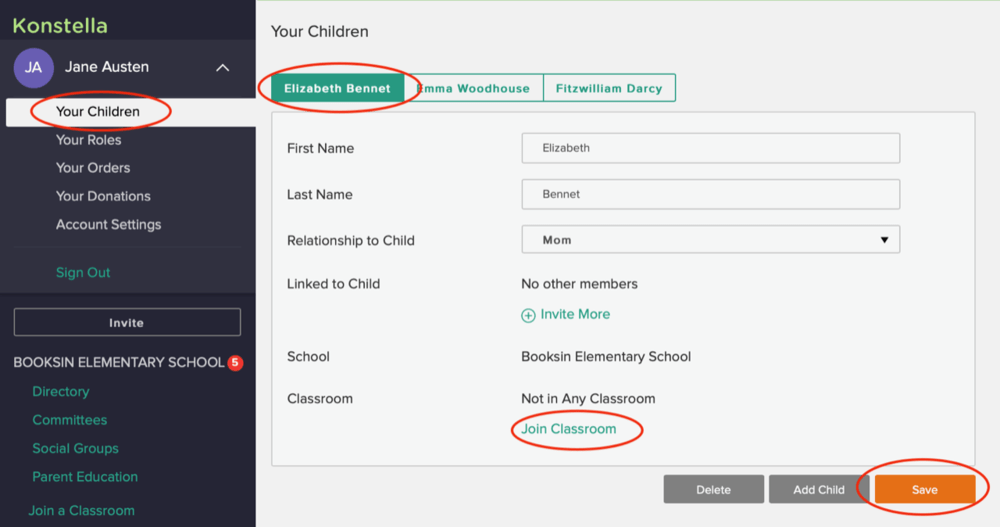
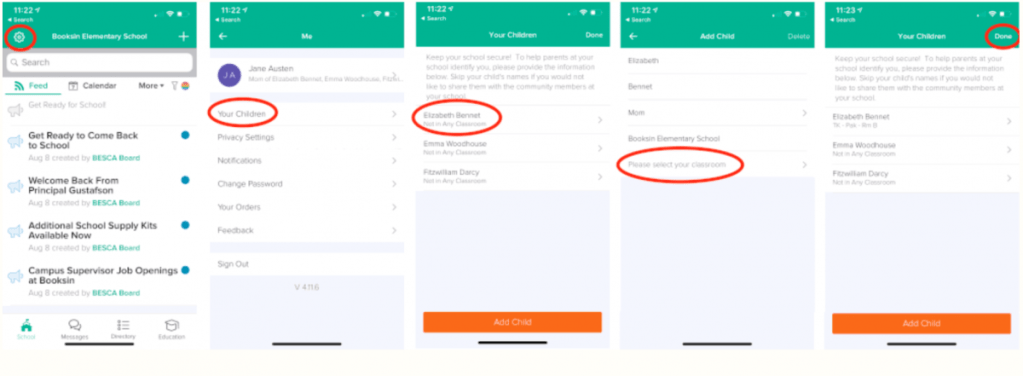
At the beginning of each school year, once you find out which classroom your child is in, you will need to add your child to the correct classroom. From a mobile device, tap the gear in the upper left corner and then your name. From a web browser, simply click your name in the upper left. Then select Your Children. Near the bottom you’ll see Classroom, and you’ll want to Add Classroom. Select your teacher from the list.
Using a Web Browser
Using a Mobile Device
Syncing Your Calendar
One of the coolest features of Konstella is an integrated calendar containing all of the classroom and school-wide events that are relevant to you. No more hand-entering dates into your personal calendar, you can now simply sync from Konstella and get updates as they occur. Similarly, you can choose to sync your “participation” calendar, including any events or volunteer positions that you sign up for.
- From the Mobile App: From your main feed, tap Calendar and then tap Sync just to the right of the month name. Note that if you are a Google calendar user, you cannot choose to sync to a Google calendar. Please use the web version in this situation.
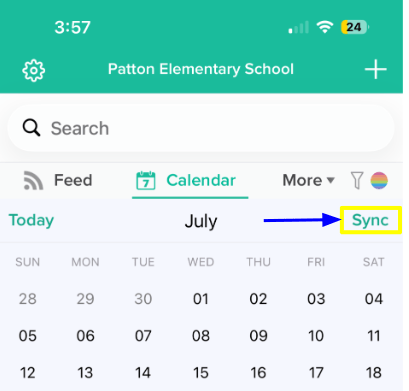
- From the Web Browser: Click Patton Elementary School from the main menu, click Calendar, and then click “Sync To My Calendar” just to the right of the month name.
Understanding Groups
Konstella offers 4 different kinds of groups: classrooms, committees, social groups, and private groups.
Classrooms are associated with students. Classrooms are named and sorted by grade level with teacher name.
Committees are PTA-led volunteer groups. We have many committees available including: PTA Board, Library, Workroom, Gardening/Landscaping, Hospitality and MANY more. You can view detailed job descriptions and time commitments, and sign up for different positions. Committee members can message the group, create events and sign-ups, and share files and photos in the committee. Committee Leads can sign up and withdraw others, edit the committee, and will get notified when others join and leave the committee.
Social Groups are generally started by parents or extracurricular groups. It’s a great way for parents to mingle and share information on a topic of interest. Like other groups, parents can message each other, create events, sign-ups, and share photos and files. Parents need to actively join one or more of these groups (you are not automatically part of these groups). Social groups are available to anyone who wishes to join and must adhere to PTA’s Konstella Usage Policy for appropriate behavior. These groups are not monitored by school administrators or PTA leaders, they are purely for convenience. Share summer camp plans, social outings/get togethers, and more.
Private Groups are created when users send messages to one or more parents who are not in the same group. In this case, a private group is created. Like other groups, parents can message each other, create events, sign-ups, and share photos and files. This is a great way to message a new classroom friend’s family to set up a play date!
Getting Informed About a School Activity
Mobile App: Tap on “School” in the bottom menu to view your home page.
Web Browser: Click Patton Elementary School in the menu on the left to view your homepage.
The homepage (aka “school” in the app) shows 3 main elements:
- Feed shows all announcements, upcoming events, sign-up. Tap items in the feed such as a signup listing for more information.
- Calendar shows all upcoming events. Remember to sync your calendar!
- More allows you to see only announcements or sign-ups, and get access to files and photos.
You can see a filtered view of this homepage for your classroom(s) or committee(s). You can select a classroom to filter your feed for that class or leave it set at the top level to see news from all classrooms you’re in. You will also see committees you have joined on the left and can filter news or the calendar for that committee or leave it at the top level to see all your news in one convenient place!
- From the Mobile App: Tap the rainbow filter icon to change your view from All School to a specific classroom or committee.
- From the Web Browser: Simply click your classroom or committee name from the menu on the left side of the page.
Signing Up For Events
When an event is happening and volunteers are needed, you’ll receive a sign-up in your Feed. Depending on your notification settings you may also receive an email. Simply click on the sign-up in the feed or email to register yourself for the event.
Finding Parents In The Directory
If you know the name you’re looking for, use the search box on top of the screen, type the name and you’ll easily find name of the person (parent, staff, teacher) you’re looking for and the information this person agreed to share (e.g. address, phone number, email)
If you’re looking for someone in a specific class or a staff member and you’re not sure of the name, click on Directory on the left side panel.
Then select the classroom you’re interested in or the staff (including teachers), and you will be able to see all the information this person has agreed to share (e.g. address, phone number, email)
Joining a Committee
Please carefully read the committee descriptions and position details before signing up. Some committees require chair/lead approval to join.
- From the Mobile App: Click the “Directory” tab at the bottom. Click “Browse Committees” to browse and sign up for the committees.
- From the Web Browser: Click the green “Committees” link on the left-hand menu to browse the committees. Click on a specific committee to learn more and/or sign up or remove yourself.
Once you join the committee, all committee specific details will now appear in your main feed including any events, signups and messages.
Viewing or Downloading Files
At the school level you can view files relevant to the whole school.
Individual classrooms and committees may also choose to share files or links.
- From the Mobile App: Tap school to view your main page and optionally tap the rainbow icon to filter to a classroom or committee. Tap More and then Files & Links to view available files and links.
- From the Web Browser: Click any classroom or committee. Choose More, and then Files & Links to view available files and links.
Sending Messages
- From the Mobile App: The “Messages” tab at the bottom shows all of the groups you are in. Click any group and start typing at the bottom.
- From the Web Browser: The left-hand menu shows all the groups you are in: The classrooms your children are enrolled and the committees you have joined.
Click on the group: on the right side of the screen, you will see the list of persons part of this group. For a classroom, you can see:
- The teachers
- The room parents (Leads)
- The parents
By default, the teachers are part of the discussion, however, if you want to send a message to parents only, use the option “message subgroup” on the bottom of the list.
Name it explicitly for all parents to understand who is part of the discussion, and select the parents, excluding the teachers. Type in the text area to post a message.
On the left menu, the new conversation group appears under ‘Private Messages’, as well as on top of the text area. Now that the group has been created you can continue messaging this group from the Private Messages area.
Sending Messages to an Individual or Group
- From the Mobile App: On the “Messages” tab, click the “+” at the top right corner. Choose “Send a Private Message.”
- From the Web Browser: Click the “+” sign right next to the “Private Messages” label on the left-hand menu.
Privacy and Notification Settings
You have control over your personal information, privacy settings and how you want to be notified when things are updated in Konstella.
- From the Mobile App: Tap the gear icon in the upper left corner to view and set up your account.
- From the Web Browser: Click on your name in the upper left corner to view and set up your account.
Summary of Mobile App Navigation
School Tab: Shows announcements, events, and sign-ups in your school and classrooms. The rainbow icon on the right allows you to filter based on specific classrooms or committees.
Messages Tab: Shows the groups you are in and the messages in the groups.
Directory Tab: Allows you to look up parents, browse committees, and Social Groups.
Settings Gear: (at the top left corner )Account settings.
Summary of Web App Navigation
Main Menu on Left: Contains your account, your school, your classrooms, your committees, the school directory, the Committees menu where you can view all committees and signup to join them, social groups, and private messages.
Menu Across The Top: When viewing Patton Elementary School (your consolidated feed), or when viewing a classroom or committee, across the top you see Feed, Calendar, and More (Click to view Announcements, Sign-Ups, Files & Links, and Photos)


You must be logged in to post a comment.